Claude Code - Introduction & Setup for Linux
A concise guide to getting started with Claude Code, an AI-powered agentic coding tool that lives in your terminal
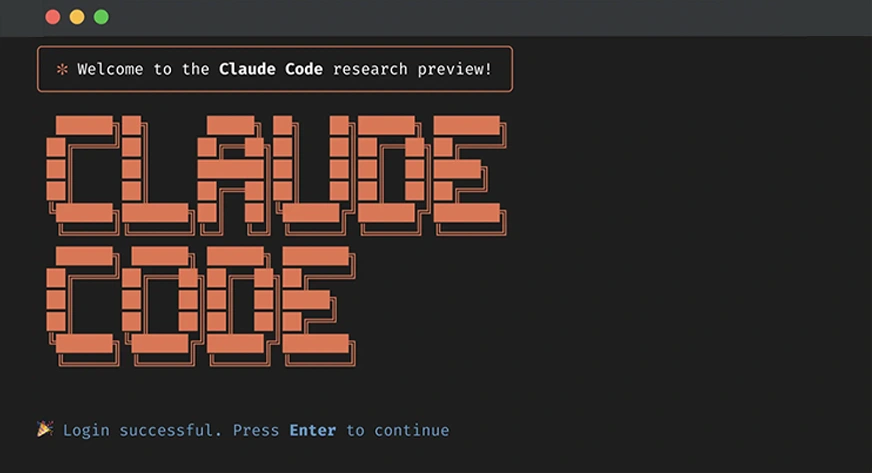
What is Claude Code?
Claude Code is an AI-powered agentic coding tool created by Anthropic that helps you analyze, plan, write, and edit code within your projects. Unlike other AI coding tools like Copilot or Cursor that come with embedded UIs in code editors, Claude Code lives directly in the terminal, allowing seamless integration with your existing development workflow without forcing you to switch IDEs.
Key Features:
- Terminal-based interface
- Deep codebase understanding
- GitHub workflow integration (automated code reviews, working on issues)
- Git repository awareness (branch management, commits, conflict resolution)
- Optional VS Code extension for enhanced features
Installation
Install Claude code globally:
via the Claude AI bash script
|
|
of via npm:
|
|
First-Time Setup
- Navigate to your project directory:
|
|
- Start Claude Code:
|
|
-
Follow the setup prompts:
- Sign in with your subscription
- Authorize in the browser
- Trust the project files when prompted
-
Optional - Enable Shift+Enter keybinding for multi-line input:
|
|
Best Practices
Recommended Workflow:
- Use a hands-on approach, coding alongside Claude on focused tasks
- Review all code changes as they happen
- Check the work as you go to keep code clean and bug-free
Avoid:
- Letting AI code everything autonomously
- This leads to bugs, sloppy code, and technical debt
Getting Started
Try asking Claude about your project:
|
|
Claude will read your codebase and provide an overview, making it excellent for onboarding to new projects.
Claude Code excels at understanding your codebase and generating tailored, appropriate code on a project-by-project basis, making it a powerful addition to your development toolkit.
What’s Next?
With Claude Code installed and configured, we will then look at:
- Add project memory using a
CLAUDE.mdfile - Set up MCP servers for additional tools
- Create custom commands for common tasks
- Spin up sub-agents for parallel work